
Introduction
DokuMate allows you to update the change logs, or document histories, of Word and Excel documents contained in a DocumentTracker with one click of a button. Specifically, in simple terms, you can:
- append a new entry,
- overwrite the last entry, or
- reset the history by removing all existing entries and starting from scratch with a new first entry.
To better understand how this feature is used, let's look at how document changes are recorded before considering the functionality in more detail.
How are Document Changes Recorded?
Example: Current State History and Title Page
Consider the following example document history, or change log. It contains two entries, each one specifying a date, revision, author, status, and comment.
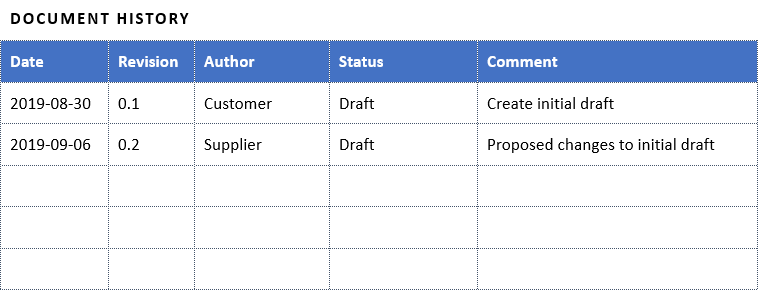
In this example, on August 30, 2019, revision 0.1 was produced by an author called "Customer". Along the document lifecycle, the revision is considered a draft and the comment tells us it was the initial draft. Next, on September 6, 2019, revision 0.2 was produced by an author called "Supplier". This revision is also considered a draft and the comment tells us that the author has proposed changes to the initial draft.
The last entry should specify the current version of the document, meaning you should find the same date (e.g., 2019-09-06), revision (e.g., 0.2), author (e.g., Supplier), and status (e.g., Draft) on the title page as shown below. The only piece of information that is exclusively located in the document history is the comment (e.g. "Proposed changes to initial draft").
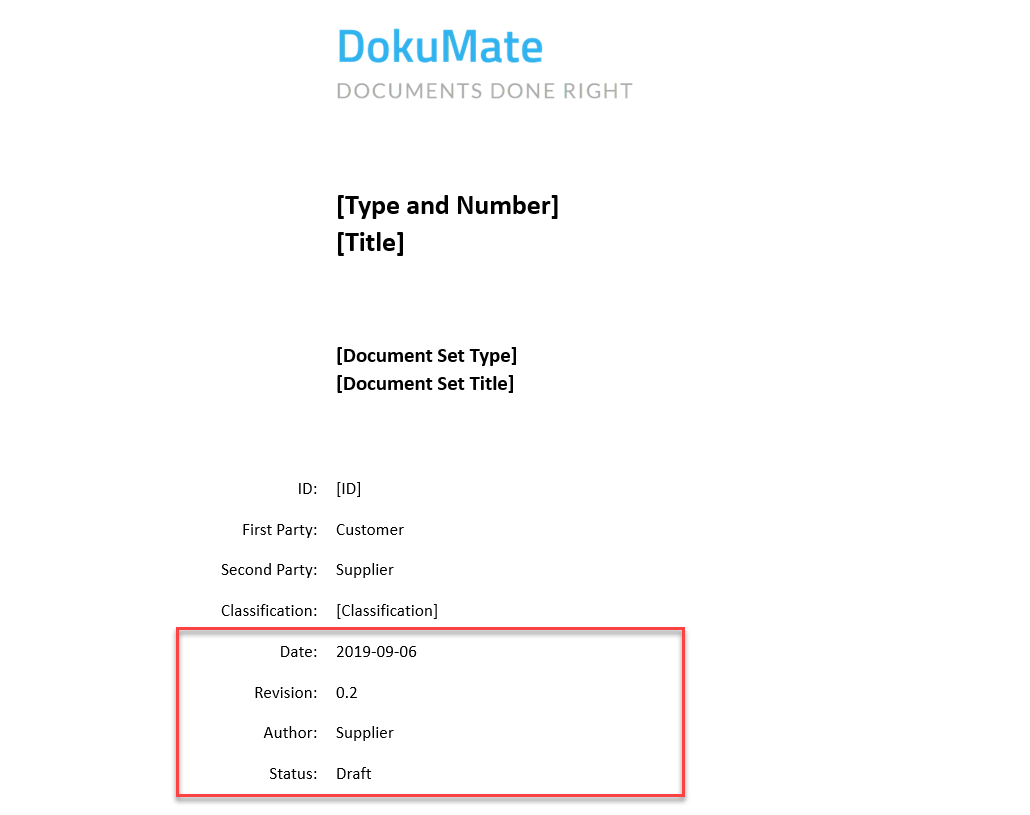
The metadata on the title page of a Word document is entered in so-called content controls. The content controls containing the date (docDate), revision (docRevisionNumber), author (docAuthor), and status (docStatus) are data-bound to corresponding document properties stored in a so-called custom XML part, which is embedded in the Word document. DokuMate can read the current values and display them in the DocumentTracker. DokuMate can also update the values, in which case Word will display the updated values in the corresponding, data-bound content controls.
Example: Next Revision
Now, assume Customer updates the document again and produces a revision 0.3, dated September 12, 2019, still in draft status. The title page should reflect that as shown below.
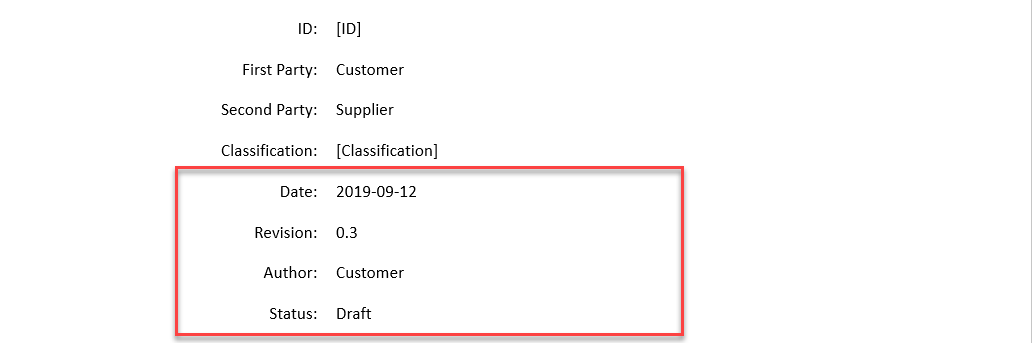
If you are only dealing with individual documents, it would be easy to update the document history by adding a new entry with the above information and a comment that says something like "Commented on the proposal". However, if you are dealing with a large set of documents, e.g., in the context of an RFP process, you would want to make sure that the metadata you see on the title pages and in the document histories is consistent while being efficient in updating or adding that metadata. This is where DokuMate and the Update Change Log feature comes in.
How Do I Update the Change Logs?
Before using the Update Change Logs function, you need to make sure the document date, revision, author, and status reflect the latest state. This is typically done by using the DocumentTracker, which shows the current date, revision, author, and status values and which also lets you update those values to ensure they are consistent across the set of documents.
To update the change logs, click on the Cleanup menu and select the Update Change Logs menu item as shown below.
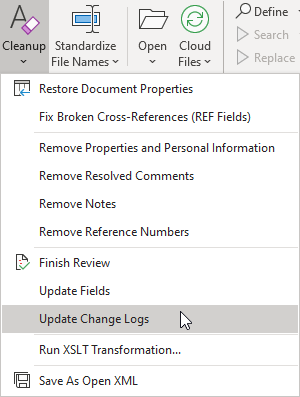
This will bring up the Update Change Log dialog, which lets you enter the value of the Comment column of the change logs, or document histories while all other column values will be taken from the document metadata (i.e., docDate, docRevisionNumber, docAuthor, and docStatus) that exists in the documents at the time the change logs are updated.
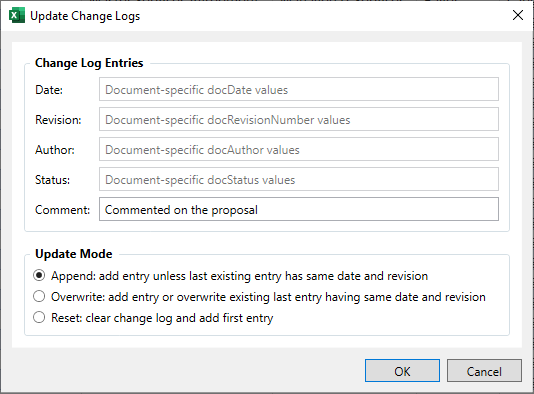
The dialog also lets you select the update mode, i.e., append, overwrite, or reset. Those are explained in the following sections.
The Append Mode
In the Append mode, DokuMate adds a new entry to the document history, unless an entry with the same date and revision number already exists. If a corresponding entry already exists, no entry will be added, meaning no change is made to the document history.
When is this useful? A user might have added an entry with the correct date and revision number and a document-specific comment that you do not want to overwrite. In that case, only the document histories without entries reflecting the current date and revision are updated.
The Overwrite Mode
In the Overwrite mode, DokuMate adds a new entry to the document history, unless an entry with the same date and revision number already exists. If a corresponding entry already exists, the entry will be overwritten, meaning that in particular the existing author, status, and comment values are replaced.
When is this useful? You might have updated the document history and then realized you would like to change the comment. In that case, you simply update the document history again while providing the new comment.
The Reset Mode
In the Reset mode, DokuMate removes all entries from the document history and adds a new, first entry.
When is this useful? Consider an RFP process, for example, during which you log multiple changes before you eventually release the RFP. For the release, you would like to have a clean document history with one entry that represents the first release of the set of RFP documents. At the end of the process, you will want a clean history for the cleaned-up set of contract documents to be signed by the parties.
Comments
0 comments
Article is closed for comments.